Since the pandemic, employers around the world have needed to change. They've had to shift how their employees operate. Remote work is very much here to stay. Organizations and employees can both benefit from the work-from-home and hybrid work revolution.
Cost savings is a driver for supporting remote work. Employee morale and productivity also can be higher when employers grant this flexibility.
A majority of organizations support some type of remote work. Statistics show that:
16% of companies are completely remote
40% support hybrid office/remote working
44% don’t allow employees to work remotely
While there are benefits, there are also challenges to this new environment. Employers worry about the cybersecurity risks of remote teams. Managers can find it more challenging to make sure employees are doing what they should do.
The remote and hybrid work environment has led to the rise of employee monitoring tools. These tools have mixed reviews from employees.
What Is Employee Monitoring Software?
Employee monitoring software tracks digital movements. This can include everything from general clock-in clock-out tracking to taking screenshots of an employee’s computer several times per hour.
Tracking tools like Hubstaff and BambooHR track many activities on a person's computer. The information is then sent in a daily or weekly report to the company.
Items that these tools can track are:
Time clock
Keyboard activity
Keystrokes
Mouse activity
Websites visited
Screenshots of the desktop
Apps used and how long in use
The most invasive of tools can even track the sounds and video of the employee. Tracking can be visible, so the employee knows about it or hidden from the employee. It depends on the tool used and the ethical considerations of the employer.
This type of monitoring can benefit an organization worried about “productivity theft.” But it can also alienate good employees and torpedo morale and trust. We’ll go through the pros and cons to weigh before you set up this type of system.
Pros of Activity Monitoring Tools
Helps Managers Understand How Employees Spend Their Day
One feature of many tracking tools is the ability to track time by project. This helps managers understand where employees are prioritizing their time. Knowing how much time employees spend on a project helps with ROI projections.
Reduces Non-Work Activities During Working Hours
One thing that employers worry about with remote employees is that they will waste time. A manager doesn’t want to pay someone only to find out the employee spent half their time on Facebook.
About half of monitored employees spend 3+ hours per day on non-work activities. When employees know that their boss is monitoring their app usage, they’re less likely to goof off.
Can Be an Easy Way to Track Time for Remote Workers
Smaller companies that work with fully remote teams may find tracking tools convenient. Employees or freelancers can track their time at the click of a button. Employers can put an hour-per-week cap on time. They can also manage payments automatically through the app.
Cons of Activity Monitoring Tools
Hurts Employees' Morale & Productivity
Many employees feel they are put in a cage when monitoring is introduced. Morale can plummet, which takes productivity along with it.
Instead of focusing on work completely, various thoughts go through employees’ minds. Such as, “If I think about this problem too long, is the tracking going to give me a low productivity score?” Or “What happens when I’m on the phone with a customer and not moving my mouse around? Will the tracking make it look like I’m not working?”
Some of the feelings that employees can have when monitored are:
Betrayed
No longer trusted
Loss of company loyalty
Hurt
Treated like a number instead of a person
“Activity Monitoring” Doesn’t Mean Productivity
Many of these tracking tools send employees and employers “activity reports.” These reports simply look at keyboard and mouse activity during a specific time.
But what if the employee must solve a workflow issue and needs to use their brain, not the mouse? What if a salesperson is on the phone with a customer, not using their keyboard? Zoom calls bring a similar quandary. If you’re in a Zoom call, your mouse and keyboard aren’t being actively used as they would if you are typing.
Yet, the activity report doesn’t include this information. It will simply give a score of x% based on keyboard and mouse activity. This could make an employer think a worker was goofing off when they were actually working hard.
Costs Organizations Good Employees
Nearly half (47%) of surveyed tech employees stated they would quit if their boss tracked them. Employers implementing monitoring can alienate good employees and make them feel untrusted. They can also feel unappreciated.
When you relegate everyone to a number of keyboard strokes, you constrain creativity. Good employees often stay with companies where they feel appreciated and can grow. Once that’s gone, they’re likely to leave.
Finding a Balance
A few things to think about when finding the right balance between tracking too much or too little are:
What do you really need to track?
Should you treat all employees the same?
What do your employees think about monitoring?
Are you trying to solve a problem that doesn’t exist?
What features are unnecessary that you can turn off?
Is the tool giving you accurate data related to productivity?
Get Expert Advice on the Best Tools for Your Business
Cloud tools are an important part of your business. You should deploy them thoughtfully. Give us a call today to schedule a chat and get valuable advice.
There are a lot of things that have changed since the invention of the internet. One of these is how we bank and access our accounts. You used to have to go into a local bank branch to make deposits and withdrawals. Now, you can take a picture of a check and deposit it from your phone.
Approximately 73% of people around the world use some form of online banking at least once a month. People have never had such convenient account access. But that convenience can come at a cost.
In 2021, account takeover fraud increased by 90%. New account fraud jumped a whopping 109%. As the ease of online banking has increased, so has banking-related cybercrime.
If someone breaches your Facebook account, it can be a real pain. But, if a hacker breaches your bank account, it can be devastating. It can mean significant losses. Losses that you may not be able to recoup from your financial institution.
In this article, we’ll take a look at the mistakes people make that leave their accounts at risk. Then, we’ll go over some important tips on how to keep your bank account better protected.
Mistakes That Allow Criminals to Access Your Account
Not Enabling Two-factor Authentication
Two-factor authentication (2FA) is a simple process that packs a big punch. When you enable this setting in an online account, it requires an extra step to gain access. That step usually consists of receiving a one-time passcode (OTP) by SMS and entering that at login.
Many people make the mistake of leaving this disabled. They either don’t know it’s there or they think it’s too inconvenient. But leaving this setting off makes it much easier for a bad actor to breach your account.
Falling for a Phishing Scam
There are several types of phishing scams that target online banking. Cyber criminals send emails that look like they come from your bank. They’ll even promise incredibly low rates on credit cards.
Other scams can involve warning you of unauthorized account activity. But when you click the link to log in, you’re actually on a fake page. One designed to look just like your normal bank website.
These are just a few ways that scammers can get your online banking login details. Once they have them, they’ll act immediately to get whatever they can.
Using Easy-to-Guess Passwords
If your account password is easy to remember, it’s also often easy to guess. Using weak passwords is a common mistake that enables many cyber criminals.
Some best practices for passwords include:
Make them at least 10 characters long
Include at least one number
Include at least one symbol
Include at least one upper-case letter
Don’t make them personal (e.g., don’t use your birthdate, etc.)
Downloading Unsafe Mobile Apps
Banking trojans are often hidden in malicious mobile apps. These apps can look like something as innocent as a task manager. But, once installed, banking trojans seek out any details they can find. They are looking for banking and wallet apps.
Logging Into Online Banking While on Public Wi-Fi
One surefire way to give away your online banking password is to log in while on public Wi-Fi. Hackers hang out on public hot spots and spy on the activity of others. You should never type in a password or other sensitive details when connected to public Wi-Fi.
Tips for Improving Online Banking Security
Turn On Two-Factor Authentication
Enable two-factor authentication in your online banking account. This is also known as multi-factor authentication or two-step verification. According to Microsoft, it can block 99.9% of fraudulent account login attempts.
Set Up Banking Alerts
Time is of the essence when an intruder breaches your account. The faster you can notify your bank of the breach, the better. You could reduce the impact on you by having your account locked down immediately.
Set up banking alerts through your online banking. These can include things like low-balance alerts and login alerts.
Install an Antivirus & DNS Filtering On Your PC & Mobile Device
It’s important to have reliable antivirus software on your PC and mobile device. Many people don’t think about protecting their phones in this way. Yet, they shop online and bank via mobile devices.
It’s also good to use a DNS filter. This is a filter that protects you from going to dangerous phishing sites by blocking them.
Take Phishing Training Classes
Do you know how to identify phishing? Are you up on all the newest scams? You can make yourself less vulnerable by taking some phishing awareness classes. There are many of these for free online. You can also contact us for more personalized training options.
Knowing how to spot phishing via text, email, and phone can help you avoid becoming a scam victim.
Get Help Protecting Your Family from Scams
There are some key digital solutions we can put in place to keep your family safer from online threats. Give us a call today to schedule a chat about online security.
Microsoft released the Windows 11 operating system (OS) over a year ago. It was largely well-received as stable and user-friendly. The OS is not a large departure from the Windows 10 experience. But it does offer a lot of enhancements over the older environment.
Yet with several improvements and a free upgrade for Windows 10 users, it still lags in adoption. As of November 2022, Windows 10 still owns the lion’s share of Windows PCs. It has a 69.75 percent usage share as compared to 16.13 percent for Windows 11.
People are slowly upgrading to the newer OS. But it’s natural for some to take a wait-and-see stance. They want to make sure it’s worth the time to upgrade. Additionally, no one wants to have to relearn their computer desktop.
The good news is that Windows 11 has a similar workspace feel to its predecessor. But it packs a lot of great productivity and security benefits that Windows 10 lacks.
Here are some of the coolest features in this current Windows OS. After taking a look, you may choose to go ahead and take the plunge into the Windows 11 universe.
Snap Layouts
Most people are working with more than one app open at a time. It’s not unusual to need to reference two different windows while doing side-by-side work. Switching back and forth between apps can be tedious. It’s also time-consuming.
Approximately 68% of app users say that switching between apps costs them at least 30 minutes per day. Trying to size two windows next to each other can also be frustrating. You lose the scroll bar or can’t get to the menu items unless you resize.
Enter snap layouts. This nifty feature in Windows 11 solves the multi-app problem. Simply hover over the maximize icon at the top of any window to get access to a snap layout.
Choose the area you want for the active app, and it will snap into place and allow you to choose apps for the other slots.
Master Search
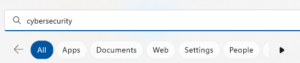
Need to find a document, website, image, or app quickly? Use the Windows 11 master search. Just click the search icon on your desktop. You’ll get a search bar that will populate results from the entered keyword.
As an added touch, Microsoft populates fun topics into the search bar daily. Learn more about James Webb Space Telescope, Coffee Day, or other fun subjects.
Once you enter your keyword, you can further refine your search. Refine it according to the type of search result you want. (apps, documents, web, etc.).
Clipchamp Video Editor
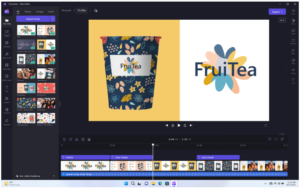
In the latest Windows 11 update, Microsoft gifted users with a free video editor. The new Clipchamp app makes it easy to edit videos. You don't need to download any extra software.
Clipchamp has a lot of the features you’d expect to have to pay for. These include templates, effects, video resizing, green screen, and more.
MS Teams Video, Audio & Text Messaging
Video calls have become the norm since the pandemic. But not all video software is easy to use. Most of us have had to wait on someone late to a call because they were struggling with the app.
Windows 11 comes with Microsoft Teams preinstalled. This gives you a simple click-to-call experience. You can easily invite someone to a video or audio call. The person does not need to have a Microsoft account to connect with you. This makes things easy on both sides.
Another great feature of the Teams app in this OS is the fact that you can use it for SMS messaging. Instead of having to drag out your phone, just text someone from your desktop.
Accessibility Features
Windows 11 has some great accessibility features. They're designed to help ensure everyone can use their computer as they want. Those with disabilities can enjoy these features. As well as those that like the extra flexibility they offer.
Four of the newest accessibility features in the OS include:
System-wide live captions
Focus sessions
Voice access
More natural voices for Narrator, Windows’ built-in screen reader
Collections in Microsoft Edge
Microsoft Edge is the default browser for Windows. It’s worth checking out if you haven’t yet. Especially because of a feature called “collections.”
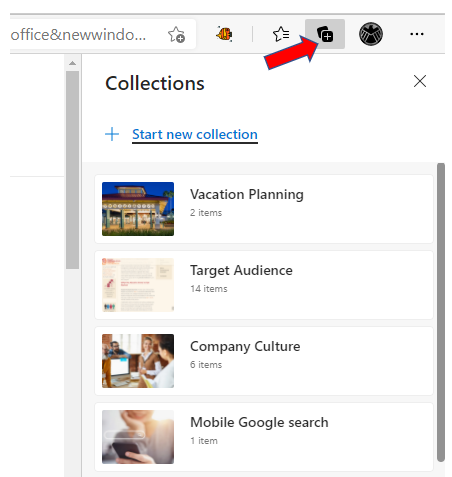
If your bookmarked favorites are becoming a mess, you’ll love this Edge capability. If you click the “plus” icon at the top of an Edge browser window, you’ll get the collections panel. Add a collection subject and click to add webpages.
You can see a preview of what you’ve added, and everything is nicely organized. Collections are easy to access and easy to delete when you’re finished with them.
Microsoft Defender SmartScreen
Phishing remains the biggest online security threat. It’s used to enable many forms of cyberattacks, from ransomware to credential theft. A significant number of phishing messages send users to malicious websites. You often don’t know until it’s too late that you’ve landed on a malware-laden site.
Windows 11 includes Microsoft Defender SmartScreen. This app helps protect you from those dangerous phishing sites. The app checks URLs in real-time against a dynamic list of reported phishing sites. It will warn you if a site is potentially dangerous.
Want an Expert to Help with Your Windows 11 Upgrade?
It can be intimidating to upgrade your system’s operating system. Why not get a pro to help? Give us a call today to schedule a chat about a Windows upgrade.
No business wants to suffer a data breach. But unfortunately, in today’s environment, it’s difficult to completely avoid them. Approximately 83% of organizations have experienced more than one data breach. (IBM Security 2022 Cost of a Data Breach Report)
These breaches hurt businesses in many ways. First, there is the immediate cost of remediating the breach. Then, there are the lost productivity costs. You can add lost business on top of that, and lost customer trust. A business could also have extensive legal costs associated with a breach.
According to IBM Security’s report, the cost of a data breach climbed again in 2022. The global cost of one breach is now $4.35 million, up 2.6% from last year. If your business is in the U.S., the cost rises to $9.44 million. In Canada, the average data breach costs companies $5.64 million.
Costs for smaller companies tend to be a little lower. But breaches are often more devastating to SMBs. They don’t have the same resources that larger companies do to offset all those costs.
It’s estimated that 60% of small companies go out of business within six months of a cybersecurity breach.
Companies don’t need to resign themselves to the impending doom of a data breach. There are some proven tactics they can take to mitigate the costs. These cybersecurity practices can limit the damage of a cyberattack.
All these findings come from the IBM Security report. They include hard facts on the benefits of bolstering your cybersecurity strategy.
Cybersecurity Tactics to Reduce the Impact of a Breach
Use a Hybrid Cloud Approach
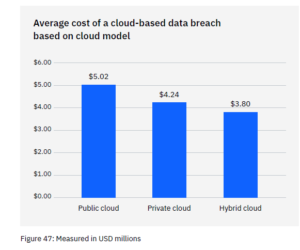
Most organizations use the cloud for data storage and business processes. Researchers found that 45% of all data breaches happen in the cloud. But all cloud strategies are not created equally.
Breaches in the public cloud cost significantly more than those in a hybrid cloud. What is a hybrid cloud? It means that some data and processes are in a public cloud, and some are in a private cloud environment.
What some may find surprising is that using a hybrid cloud approach was also better than a private cloud.
Put in Place an Incident Response Plan & Practice It
You don’t need to be a large enterprise to create an incident response (IR) plan. The IR plan is simply a set of instructions. It's for employees to follow should any number of cybersecurity incidents occur.
Here is an example. In the case of ransomware, the first step should be disconnecting the infected device. IR plans improve the speed and effectiveness of a response in the face of a security crisis.
Having a practiced incident response plan reduces the cost of a data breach. It lowers it by an average of $2.66 million per incident.
Adopt a Zero Trust Security Approach
Zero trust is a collection of security protocols that work together to fortify a network. An example of a few of these are:
Multi-factor authentication
Application safelisting
Contextual user authentication
Approximately 79% of critical infrastructure organizations haven’t adopted zero trust. Doing so can significantly reduce data breach costs. Organizations that don’t deploy zero trust tactics pay about $1 million more per data breach.
Use Tools with Security AI & Automation
Using the right security tools can make a big difference in the cost incurred during a data breach. Using tools that deploy security AI and automation brought the biggest cost savings.
Data breach expense lowered by 65.2% thanks to security AI and automation solutions. These types of solutions include tools like advanced threat protection (ATP). They can also include applications that hunt out threats and automate the response.
How to Get Started Improving Your Cyber Resilience
Many of these ways to lower data breach costs are simply best practices. You can get started by taking them one at a time and rolling out upgrades to your cybersecurity strategy.
Working with a trusted IT provider, put together a roadmap. Address the “low-hanging fruit” first. Then, move on to longer-term projects.
As an example, “low-hanging fruit” would be putting multi-factor authentication in place. It’s low-cost and easy to put in place. It also significantly reduces the risk of a cloud breach.
A longer-term project might be creating an incident response plan. Then, you would set up a schedule to have your team drill on the plan regularly. During those drills, you could work out any kinks.
Need Help Improving Your Security & Reducing Risk?
Working with a trusted IT partner takes a lot of the security burden off your shoulders. Give us a call today to schedule a chat about a cybersecurity roadmap.
Data privacy has been a growing requirement ever since the internet age began. So much personal information is flying around through computer networks. Protecting it has become a mandate.
Most companies must follow HIPAA, GDPR, or another industry or locality-based privacy rule. By the end of 2024, 75% of the world’s population will have their personal data protected. It will fall under one or more privacy regulations.
You don’t need to be a large enterprise organization to have data privacy compliance at the top of your mind. It goes hand in hand with cybersecurity. Additionally, privacy requirements hit all sized companies.
Between July 2020 and July 2021, GDPR violations rose by 113.5%. The number of associated fines also jumped, by 124.92%. When it comes to HIPAA violations, each incident can carry a penalty between $100 to $25,000.
It’s important to make data privacy a priority and factor it into all your data collection processes. When companies collect, send, or store personally identifiable information (PII) it needs protection. This means putting adequate safeguards in place.
To stay on top of your privacy compliance obligations, you should also keep up with trends in this area. Next up, we’ve documented the biggest data privacy trends happening in 2023 that you should be aware of.
What’s Happening in Data Privacy Compliance?
AI Governance
Approximately 40% of privacy compliance technology needs artificial intelligence (AI) to operate. AI has certainly made its way into many of the applications we use on a daily basis.
When you’re typing in MS Word and text just springs up as a suggestion, that’s AI predicting what you’ll type next. When working on a photograph in Photoshop, you can now click a button to give a frowning face a smile. This is also the work of AI.
So, it’s no surprise that AI is running many of the algorithms responsible for keeping data protected. But what happens when there is a problem with the AI?
This is the question that AI governance is working to address. This is a new trend in data privacy because AI has never been so prevalent throughout the data journey as it is now.
Whenever AI is used in the data protection area, organizations need to govern it properly. This helps ensure that automated processes aren’t accidentally exposing sensitive data.
Consumer Privacy UX
A trend that we’ve seen over the last several months is putting more privacy power into the consumer’s hands. Many privacy regulations require that apps and websites provide data transparency. They need to tell people what data they’re collecting, how they’re collecting it, and what they do with it. People also need an “out” to get their data back.
These needs have led to consumer privacy UX becoming a “thing.” You can think of this as a centralized privacy portal. A place people can access privacy-related settings in various apps. This gives better visibility into how their data is being used.
Increased Scrutiny of Remote Employee Monitoring
The pandemic has forever changed the global workforce. Many organizations are now running completely remote offices. Or may be using a mix of remote and in-office staff. The dramatic increase in people working from home has led to data collection changes. Companies are ramping up their monitoring of those employees working off-site.
But this type of monitoring opens a can of worms when it comes to data privacy. Organizations need to ensure that they aren’t encroaching on the rights of their staff. This is most pertinent when putting monitoring in place on employee devices.
For example, approximately 49% of remote employees use their personal computers for work. Companies often put endpoint device monitoring in place for security reasons. They need to ensure they are not gathering or backing up any personal data. That would be data owned by the employee and not the company.
Data Localization
One of the concerns when the social app TikTok became popular relates to location. With the firm being a China-based company, people worried about the privacy of their data. The data was originally stored on servers governed by the Chinese government. A country with very different data privacy rules than the US and other countries.
Data localization is going to become more prevalent. Increasingly organizations look at where their cloud data is being stored. Where a server resides governs the privacy rules and regulations that it may fall under. Thus, companies and governments are now asking a question of cloud providers. This is, “Where is my data stored?” Many want their data to be as close to home as possible.
Privacy-Enhancing Computation (PEC)
Data privacy by design is a fairly new term. Using privacy-enhancing computation is a way that AI is helping cybersecurity. By using PEC as a built-in component of software and apps, developers provide value to clients. They address privacy concerns by making data protection more automated.
Look for PEC components in data analytics when shopping for business tools.
When Is the Last Time You Had a Compliance Check?
How are your data privacy protections? Are you risking a penalty due to lax controls? Give us a call! We can help with a compliance checkup.
Article used with permission from The Technology Press.